Showing posts with label CollectiveAccess. Show all posts

Monday, October 17, 2022

Culture Cleaning

 Hello!

As part of the Unlocking Community Museum Collections project, one of my tasks this summer has been to 'clean' the CollectiveAccess Culture field. This has meant looking through each museum's database to see what has been entered into the culture field (that's a total of 349,748 records!). I have been making note of all the different cultures entered, keeping track of common trends, and correcting outdated language. 

One of the long-term goals of this project is to make the Culture field public on NovaMuse, thus making records searchable by culture. This project has a special focus on Nova Scotia's four founding communities: Acadian, African Nova Scotian, Gaelic, and Mi'kmaq. Ideally, all records associated with one of these cultures should be linked together and easily found. In order for this to work effectively, it is important for the field to be filled out correctly using consistent language. I thought I would share some trends and tips that I came across in my cleaning that might help us to make better use of the Culture field moving forward. 

Stats

Out of the 349,748 total records, only about 6% of them included a Culture field entry. Of the 56 databases, 8 of them included no culture entries at all and the rest had very few entries. We are hoping to increase use of this field in order to link as many objects to their cultures as possible. 
 

Language

Making sure the database records are as accurate and respectful as possible means using the most up-to-date and preferred language when describing cultural communities. It is also important to remain consistent with spelling and terminology. For instance, Acadian, African Nova Scotian, Gaelic, and Mi'kmaq are the preferred terms used within CollectiveAccess. 

A resource that I found to be very helpful when doing this work is Indigenous Peoples: Language Guidelines, created by the University of British Columbia. 

Culture vs. Group

The Culture field is meant to identify the culture associated with the object based on its social or geographic origin. Terms should be entered using the adjectival form. (ie. Scottish, German, Mi'kmaq, etc.)

The Group field is used to connect objects with associated groups or organizations. Political parties, religions, sports, fraternities, and clubs are all examples of grouping options. 

Another thing to keep in mind is that CollectiveAccess also has a Military Unit field, so this type of information does not need to be entered into either the Culture or Group field. 

Overall, the Culture field presents a great opportunity to improve access to information on NovaMuse and create a more user friendly experience for the public. Keeping in mind that this is an ongoing effort that will take time, we are already making exciting progress towards being able to link cultural records together. Next time you are entering or editing a record on CollectiveAccess, take a quick look at the Culture field to see if there is any information that could be added or updated. 

Wednesday, May 15, 2019

CollectiveAccess - How to Enter Child Records Part 2

A great question was asked since we released instructions in a previous blog post for how to add a child record in CollectiveAccess. The question is "if a record already exists in CollectiveAccess, can I move it under a primary record?" The answer is yes!

First, bring up the record you wish to move under the primary record. Then, under the Administrative tab, you will find Location in Hierarchy. Click "Show Hierarchy."

Click the Move tab listed at the top. Find the primary record you'd like to list this record under by completing a key word search for the accession number.

Choose the primary record from the search results. Click on the primary record once displayed and you will receive the following message:


Then, click Save. You will see that the photograph (2007.5.1.1) is now listed as a child record under the primary record (2007.5.1).

Repeat these steps to add additional records under the primary record.

If you would like to remove a record from the hierarchy, click the scissors icon next to the record within the hierarchy and click save.


You can also add new records within the hierarchy using the Add tab. Choose record type and position in the hierarchy from the drop-down menus. A new record will generate as part of the hierarchy. Fill in the appropriate fields as you normally would do.


Would you like a demonstration? Click here to watch the YouTube tutorial. Please let us know if you have any questions along the way! We are here to help with this process.


Tuesday, February 26, 2019

CollectiveAccess - How to Enter Child Records

One of the cataloguing questions we get is how to deal with an object that has other objects within it, such as scrapbooks, photo albums, and doctor's bags. It is important to document these items as a whole, but also important to document each item within. That's where the child record feature comes into play. 

I will outline a few examples of when to input a child record under a primary record in the database. If you have questions along the way when working through this new process, please do not hesitate to reach out to us. Remember, we are always here to help and it is much easier to correct problems along the way.

 In an individual record, the child record feature will appear as a little stick figure in the record profile at the top left of the page:


To add a child record under the primary record, click the stick figure. This will open a new record for you where you would add the accession number. The child records would be a continuation of the same accession number followed by .1, .2, etc. Then, enter corresponding information and media as per usual. The tabs on the left and forms are set up the same as the primary record. Once a child record is added, the number of components will increase in the primary record (as seen above). 


The child record will open in a new window and will show the path (primary record>child record) listed under the 'Editing Artifact:" heading as seen below:


Please note that when images of the object are added under the media tab, then the primary image will appear here as well. One of our future goals is to add a hierarchical view to the child record feature so that it is easier to visualize the hierarchical structure once it is in place. So, when would you use this feature? We have been asked many times, "how do I enter photo albums and scrapbooks?" This is the perfect opportunity to use the child record feature.


Please conduct a preliminary search for your items in your database before beginning this process. If you discover that your items have not been entered, please follow the instructions below.


Instructions for Photo Albums and Scrapbooks:

Create a record for the photo album itself in CollectiveAccess, which will be your primary record. Then, enter each photo as a child record. 

Primary record = Album, Photograph
Child record = Print, Photographic

Let's walk through the steps together.

In the primary record (photograph album), click the stick figure to create a child record for the first photo in the album. It will generate a blank record that has the same fields as your primary record, the only difference is that it is linked to your primary record. Fill out the appropriate fields, attach the image, save, and then repeat the process for the other photos. Each photo should have it's own child record under the primary record. Remember to go back to the primary record (photograph album) before beginning the process again.

A few notes:

Each photograph should be assigned an accession number. In theory, this number should be a continuation of the album's number. The only exception is if numbers have already been assigned to the album's contents, please use those numbers instead. Remember, we never reassign accession numbers, this can get messy.

Example:
Album = 2016.2.1
Photo 1 = 2016.2.1.1
Photo 2 = 2016.2.1.2
and so on...

Remember, it is important to look at the back of the image for notes. These notes will help enrich the record (names of people in the photograph, location, etc.). Also, scan each photograph at a minimum 600 dpi. You want to capture the image in a higher resolution.

I know this appears to be a lot of work but it is necessary in order to maintain order throughout this process. 

The same rule applies with scrapbooks. Treat each item in the scrapbook as its own item and enter it in a child record under the preliminary record for the scrapbook. You may also use this process when entering fonds.

In the end, you will have multiple child records under the primary record. This can be a lengthy process so keep that in mind when you start. Try not to get overwhelmed. Keep track of our progress and take things one step at a time so that it is easy to pick up where you left off.

I invite you to watch our latest YouTube tutorial, which provides step-by-step instruction on how to enter child records in CollectiveAccess. This is a great place to start.

Tuesday, April 7, 2015

Museum Database Lessons - Part 3

Descriptions 
Remember in a previous lesson post I talked about proper field usage? It's time for a serious talk about descriptions.
There never seems to be a happy medium with this field. It's either blank, or full of information. Unfortunately, all too often when it's full it includes information that should not be in it. This field is for the physical description of the item, as though you're telling someone over the phone what it looks like. That's it. It is not the catch-all field.
Don't include the location of the item, that goes in the location field.
Don't include information on condition and conservation treatments. That goes into the condition field. And while we're on that subject, whoever wrote down on the harmonica record that it was in good condition because it "still plays"?! Gross!!

One of the things that I keep seeing is internal, administrative info in this field. And since it's a public field, this means that people checking out NovaMuse are stumbling upon records that say "Catalogue worksheet is missing" or "Donor didn't sign gift agreement until 2007". Not only does the public not need to see this, but it makes the museum look sloppy. Do you really want to advertise that the museum lost some paperwork or didn't bother to get paperwork signed when they should have? No, you don't. This is why we set up CollectiveAccess with an administrative page. Whatever is on that page is internal use only and will not appear online. Take advantage of this. If dirty laundry needs documenting, make sure it is on the admin page.

Colour
I know, it seems ridiculous that people could mess up this field, but it happens more often than you'd think. First I'd like to say that various is not a colour. You will never buy a box of Crayola crayons and find that one is labelled "various". Enter a quick list of colours focusing on those most prominent, ie blue, red, yellow, orange. That's all you need to do. Don't explain which part is which colour. You just need to document that if you're looking for the item you're going into storage and looking for something purple instead of yellow.

from memecrunch.com
Spelling Counts
How have I not already mentioned this?! This is probably one of the biggest problems in data entry work.
While these sometimes bring some much-needed laughs to the office, sweather, gic=n, Hong Knog, and the many ways that people try to spell photograph are all incorrect and make the museum look bad.

Images
Yup, back to the media files again. Maybe someone was just trying to be efficient, but every once in awhile I come across a group of records that all have the same image attached. Let's say the object is a book about the tide tables. The record clearly reflects the details of this one book. But the museum has a number of these books from different years and so laid them out together and took one photo. Then they attached this one photo to all 12 tide table book records. Wrong. Bad! Each book should have been scanned & attached to its particular record. They aren't all identical - condition, publication date, colour, style...totally different. If you need to find a particular one, having a group shot attached to your record is no help at all. So let's stop doing that shall we?

Subjective Language & Insider Info
We could also call this thinking community vs. worldwide. The NovaMuse audience spans the globe. Literally. So when someone in Rwanda is checking out the funny looking Canadian artifacts they might not understand some of the terms or nicknames we use. And at some point in the future your museum's staff or volunteers might not understand them either. We need to be thinking long-term about these things. Yes it might feel like you are over-explaining something, but statements like "this house is located where the Flynn family used to live" just won't make sense to everyone. So put yourself in your audience's shoes. Read through your documentation and ask yourself if someone on the other side of the planet will understand it, or even just if your successor will understand it.

Museum Immortality Syndrome
That brings me to another point. I can't tell you how many times I've visited museums and asked about an object, only to be given a wonderful and detailed explanation by the curator. "Wow!" says I, "that's so cool I want to share it online so other people can hear this story!" Then when I look up the object in the database, I'm disappointed to discover that none of those great details are in the database. Sigh. Okay folks, this is going to get morbid for a bit. I hate to break it to you, but you won't always be working at the museum. And you won't live forever. I'm not sure if keeping this info in your head seems like job security or you just don't see the point in writing stuff out that is safely tucked away in your brain, but it's time to stop thinking that way. When I joke that we need to download your curator's brain, what I'm really saying is that it's time for you to step up and improve your documentation practices.

Staff & Volunteer Training
The final point I'm going to make should have perhaps been my first. For some odd reason, a lot of museums hand over the keys to their databases when new volunteers or summer students show up. This might work out all right, except that all too often there is little or no training involved and these well-meaning new workers end up making mistakes that require fixing...ie creating more work rather than alleviating the burden on other staff/volunteers. I can't say how many times I've logged in to check one thing and ended up seeing information being added incorrectly...added by someone new who just didn't know they were making mistakes. They end up feeling frustrated that they need to go back and fix all their work; something they know could have been prevented with a bit more information up front. Nomenclature 3.0, CollectiveAccess tutorials, the basics of cataloguing...museum work requires specialized knowledge & training. We say that we are educational institutions, so why don't we focus some of that education internally? Let's all make a pact that new staff and volunteers will only start working on cataloguing and the database when they have been given real training and have proven their understanding and competency. After all, isn't that how it works with other jobs?


Well that's it for this series. I really hope that I don't have to revisit these lessons. If you want to go back and check out the earlier posts, here there are:
Database Lessons - Part 1
Database Lessons - Part 2

Monday, November 3, 2014

New Database Tools

We've been talking about this for quite some time, and it's finally time to announce that our data dictionary & error reporting tools are finished and in CollectiveAccess.
When we switched databases, one of our goals was to find a more user-friendly system that wouldn't rely so much on ANSM support. It needed to be more intuitive. Now after a few years in CollectiveAccess, we're building in even more tools to guide our users in the data entry & documentation process.

Help Text
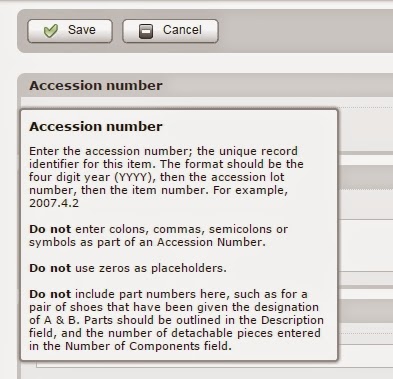
The data dictionary from our old database was incorporated into CollectiveAccess, but last winter it was completely overhauled and updated. Again, our goal was to have the system remind you of the standards of practice, provide definitions of every field, and even warn about common mistakes.
There are two ways to access the new help text. The first is to simple mouse-over the field name. A box will pop up with the info and will leave again when you move the cursor away from the field name. No muss, no fuss. Perfect for a quick reminder.

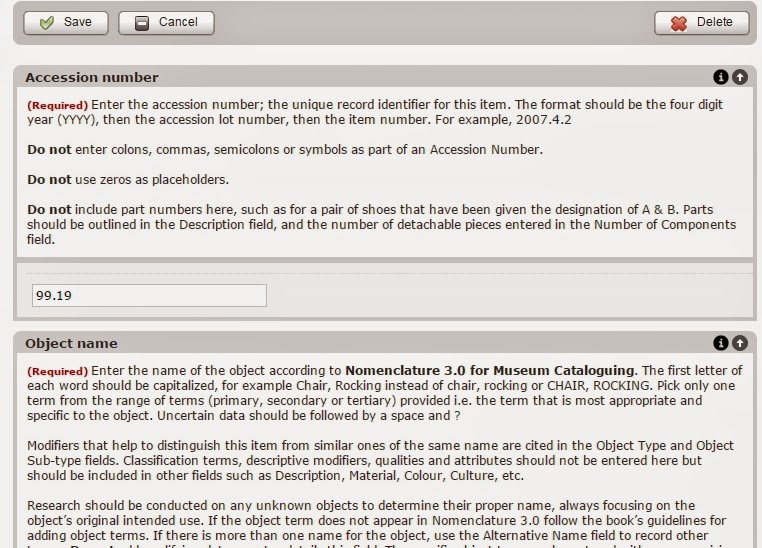
The second way to access the info is to click on the little "i" button at the right hand side of the field name. This will bring up the exact same help text, but rather than it disappearing on you, it will just stay on the screen until you click the "i" again. This is a great training tool for summer students or new staff or volunteers. They can compare what they've entered with the examples in the help text and easily assess their work. Important fields even have a little red required notation in the text.

Error Assessment
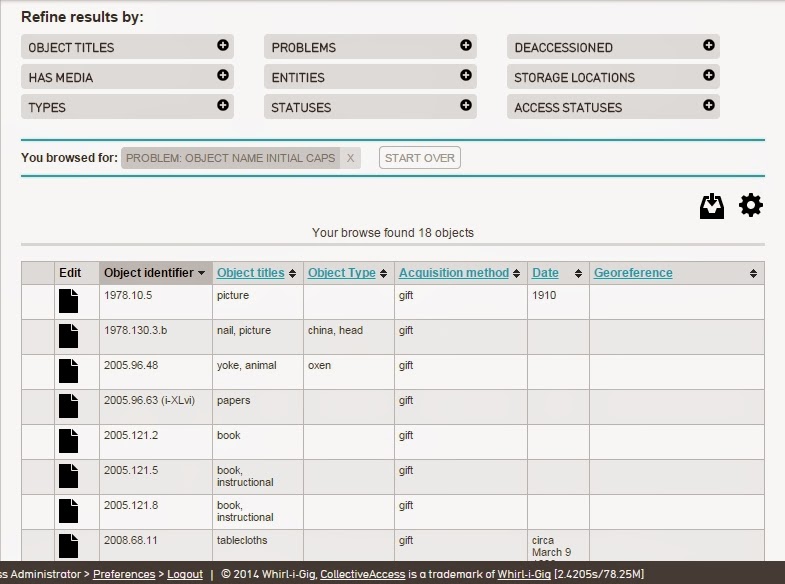
This is really cool. At least I think it's really cool. One of the issues in database work, especially if you're new to a museum, is knowing where to start. We all know there are problems that need fixing, but how do you find those problems without wasting a whole lot of time? Well, this is where our new browse button comes into play. When you go to Find - Objects - Browse, you'll notice a new option: Problems. Yup, no pussy-footing around it. Your database has some problems.
There are a number of "problems" that we've identified and told the database to flag. Clicking on the problems button will show you the list, and then you can select any of them to get your list of records. From there it's just a simple matter of working through the list. Once a record it corrected it will disappear from the list, and once there are no problems of that type, you won't see it as a browse option.

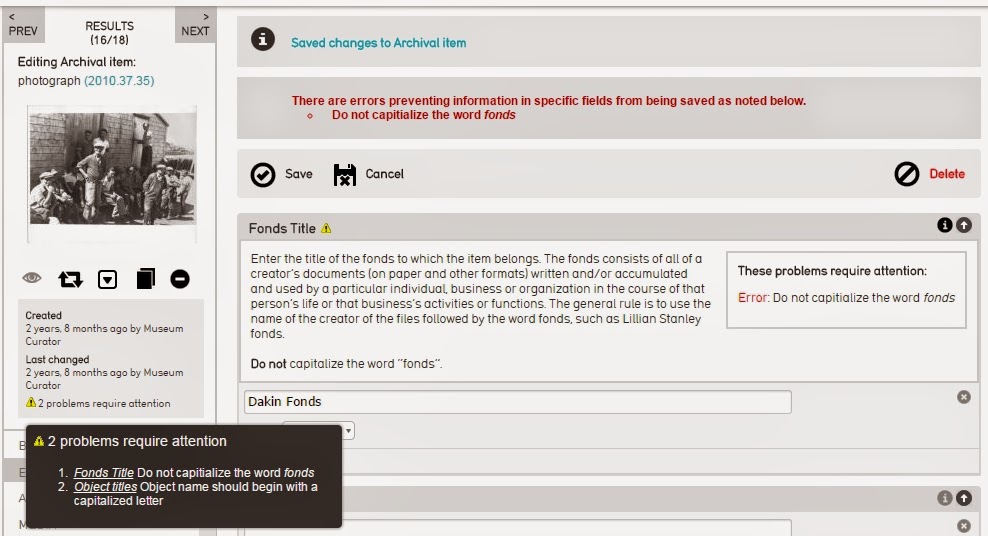
 When you go into one of the problem records, you'll notice a few new details. First, we have the lovely yield sign alerting you to the number of problems requiring attention. If you scroll over the yield sign it will expand on the issues. You will also see yield signs in the problem fields themselves. Clicking on the i for info button will provide you with the help text for that field and alert you to the problem requiring attention. If the problem is deemed serious, you won't be able to save the record until it is fixed. However, sometimes you will just receive a warning to look something over because it could be a mistake.

So that's what's new. Enjoy the new tools and I hope you'll find them helpful.

Friday, October 11, 2013

Museum Database Lessons - Part 2

Object Names & Capitalization
from churchm.ag
I can be lazy in my capitalization sometimes when writing to friends via email or Facebook. But when I'm working in a database or doing anything that I want to be viewed as "professional", I become a real stickler. And this is a mindset that I hope everyone adopts. When you look at how Nomenclature 3.0 presents object names, the first letter is always capitalized. They tell you to use Chair, Rocking rather than chair, rocking. But for some reason not everyone is following this standard. At the other end of the spectrum, I'm seeing some records that are entirely capitalized. For anyone unaware of what this means in the written and/or online world, anything entered in CAPS LOCK means you are YELLING at your reader. I know that some of these records have been migrated from very early database systems that automatically capitalized everything, but that doesn't mean you should continue the practice in our lovely new system. The last thing we want is for any museum to look lazy or crazy on NovaMuse, so please remember to capitalize correctly.

Gender Designations
Some museum databases have a gender field, but we use the Object Type field for this information. One of my pet peeves here is that people aren't consistent with how they enter a gender designation. Male-associated objects have been plugged in as man, men, man's, men's, gentleman's...so many different ways to say it. So let's pick one method and stick to it. If it's a female item, enter Woman's in the object type field. Man's can be entered for male-associated items. You don't know that the owner of the object was a gentleman or a lady, so don't make that assumption. They might have been a jerk with no class at all.

Categories

I love our CollectiveAccess database system. It's so lovely. And one of the things that I love about it is that it wants to make our lives easier with shortcuts. Yes please!!  For the category field, this means we only have to pick the most specific, or lowest level, category. For instance, if you have a hay rake, it falls under Tools & Equipment for Materials Agricultural Tools & Equipment → Harvesting Equipment. So in the category field, just enter Harvesting Equipment. 

Source

This field is NOT optional. You need to document who gave you what. Once this name is entered, references to the donor in other fields should be done by calling them "the donor". We don't want to broadcast the names of our donors via NovaMuse. So please stop putting in "donated by XXX" in your history of use or narrative or description or anywhere else. You've already documented it in the Source field.

Acquisition Method

This field is NOT optional. If your paper records are lost of destroyed, the database becomes your proof of ownership. In my first Database Lessons blog post I ranted a bit about skimping on data entry and referring people to the paper records. Again, we have to get out of that mindset. The database is where information from the temporary receipt, gift agreement, donor questionnaire, condition report, and every other document related to the item gets pulled together into one resource. 

Media Files

I know I rant about good pictures in my monthly updates, but I'm still seeing problems here. And honestly, I think this stems from students or volunteers being handed a camera and told to "take pictures of the artifacts". Um, yes. That is technically what they'll be doing. But it's a little more complicated than that. These images are being shared with the world, so don't you want them to be professional-looking and of high quality? So let's do a quick review here:
Gavel & Block
Desbrisay Museum
1 - images need to be at least 1200x1200 pixels
2 - two-dimensional items should be scanned
3 - use the macro setting for detail shots
4 - make sure the object is the only object in the photograph
5 - angles and lighting matters
6 - if the picture didn't turn out, redo it.
7 - the image file name needs to match the accession number, but replace any dots with underscores or dashes (1999.4.5 = 1999_4_5.tif). Don't ever add extra numbers or letters for additional views or it looks like you've changed the accession number. Use qualifying terms for additional views, ie 1999_4_5_side.tif or 1999_4_5_label.tif.
Look at what your peers have posted on NovaMuse and you'll quickly be able to tell what makes a good (or bad) artifact photo.
I've also had a lot of questions from people whose images weren't appearing on NovaMuse. More often than not, the images weren't online because they hadn't been set to be accessible. Once a record is set to be accessible, you have to do the same for any media files that have been attached.

Read Museum Database Lessons - Part 1

Thursday, January 31, 2013

Museum Database Lessons - part 1

In updating information to Nomenclature 3.0, assigning dates and adding georeference tags I've noticed some disappointing trends and issues that need to be addressed.

Field Usage
First up is a reminder about correct field usage. I've seen far too many records where someone just plugged everything into the description rather than the correct field, or they haven't bothered to include information that is easily extracted from the item. For example, a booklet of souvenir postcards has the manufacturer stamped clearly on the cover but the manufacturer field is blank. You may wonder what the big deal is if you can see in the image who made the postcards. Here's why it's a big deal - the database can't read the image. It doesn't know the Photogelatine Engraving Co. Ltd made the postcards because all it knows is there is a jpg file attached to this record. So this means when someone does a search on this company at NovaMuse, they won't get full or accurate results.
It is absolutely imperative that we shake off this bad habit. Fields exist for a reason. We want people to be able to navigate chronologically and that means we have to have dates in the begin/end date field. Feel free to mention the date elsewhere, but it has to be in this field for this feature to work.

Perhaps I haven't fully explained the potential of NovaMuse or why we're pushing for data entry improvements. Here's a link to another CA user website called Parrish East End Stories. This is what we want to do. We have the information; it just needs to be massaged a bit. We need to stop putting everything in one field, or ignoring crucial details during the data entry process, and recognize how the information is extracted and displayed for online visitors.

Don't Refer to File for more info
When dealing with photographs or other images of people, don't say "persons identified" or "see file for names". What good does that do you when a fire or flood wrecks your paper storage? What good does it do people looking at NovaMuse? Take the extra two minutes and type out the names.

Explain abbreviations
Abbreviations. Yup, we all use them and love them. Except, our worldwide audience and future museum workers may have no idea what we are talking about. So please, I beg you, stop putting them into your database record descriptions. No one knows what you mean by "Dom I, S blast". It ends up looking like incoherent gibberish or extreme typos.
Along the same lines, for goodness sake, please please please watch your spelling and grammar.

Accession Numbers are Sacred
Do not go altering your accession numbers! I've seen some very sketchy stuff in here, so let me be clear. This is not the field for you to make comments or add symbols that only you understand. Your accession number is the unique number that is labelled on the object. It doesn't matter what system was used in the past, you never, NEVER change this number unless you've encountered a duplicate and need to reconcile that. Renumbering the collection is making an insane amount of extra work for you. So don't do it. There's too much else on your to do list.
You also have to be consistent in your numbering. Two of the databases I've worked on this year have duplicate entries because someone entered the full numbers - 1997.3.5 - and then someone else came along and abbreviated - 97.3.5. Same item, same description, time wasted. The database will only alert you to a duplicate number if it is identical to one in the system. So if you're not consistent you can end up wasting a lot of time and resources and creating a mess for yourself in the process.

Identical Items
Let's say someone gave you a set of dishes. 6 dinner plates, 6 cup & saucer sets, 6 bowls...sounds like lots of data entry right? This is what the quantity field is for. Don't bother creating an entry for every single plate and every single bowl. Create one entry for the dinner plates and put 6 in the quantity field. Do the same for the cup & saucer sets and the bowls, and then link everything on the relationships page. Done and done.

Multiple Items (that are NOT identical)
For the love of my sanity, please please PLEASE give each item its own database entry (unless it falls under the identical items guidelines above). Yes it will take a bit more time to enter each item from the donation, but just because you received them in the same box does not mean they want to live together in your database. "Various" is not an acceptable object name. You can group items through various fields and database features, so let's make a pact. No more entering of groups of items in a single database record.

Begin & End Dates
I've talked about dating before, so I'll try not to repeat myself here. But I think it's important to assign this field a couple rules:
Rule 1 - never leave it empty. I know some museum people might want to fight me on this one, but here's why we need to have something in the date field. One of our planned updates for NovaMuse is to add a timeline feature. So if someone wants to research 1920s clothing, they can scroll through search results as a timeline and see the evolution of fashion. Fun right?
Rule 2 - if you have absolutely no idea when the object was made, look to the acquisition date for guidance. You at least know the object was made before it was acquired and accessioned by the museum, so can say "before YEAR". Then you've at least drawn a line in the sand, you've stopped the clock. So anyone searching for items made after that year date won't be bothered with a bunch of vague possibilities due to the date field being empty.

As we continue with the database work I'm sure some more tips and reminders will need to be shared, so stay tuned and happy databasing.